Text Search Bosch BVMS Video Upload Guide
This guide walks you through practical steps to prepare and upload video to Bosch BVMS, and how to get the most from BVMS text search. First, we outline file and codec needs. Next, we show server, network, and naming conventions that speed investigations. Also, we explain how to set permissions so uploads and records stay secure. Then, we cover how text search indexes camera names, event logs, alarm descriptions, and user activity. Finally, we show how integrations with access control and AI systems add context and reduce operator workload.
Visionplatform.ai helps teams turn detections into AI-assisted operations. We integrate with BVMS to create human-readable descriptions from video and to let operators query video history in natural language. Also, our VP Agent Search converts recorded footage into searchable text that matches how operators describe incidents. This improves response times and closes the gap between raw alerts and action. For deeper operational analytics, see our guide to forensic search in airports for an example of natural-language forensic workflows.
video Upload Requirements
Supported formats and codecs matter. BVMS works best with H.264 and H.265 streams, so use cameras that can output those codecs. Also, when you prepare a file for import or for a live stream ingest, confirm the codec profile and GOP settings match the recorder and server expectations. In many deployments, encoders output H.264 baseline or H.265 main profiles. If you send mismatched profiles, the workstation or server must transcode, and that will increase CPU and storage load.
Bandwidth and storage are critical. For example, BVMS can handle real-time streams and metadata from over 10,000 devices in a single system; plan your network and server resources accordingly (Bosch BVMS capacity). Also, estimate bitrate per camera. For H.265, a 1080p stream at 4–6 Mbps gives usable quality most of the time. For planning, allow headroom. Therefore, design the network to sustain peak periods, not average load. Use separate VLANs for video traffic to isolate it from general data. In addition, consider storage systems such as iSCSI arrays or NAS for long retention. For SAN or iSCSI designs, confirm that your server and storage architecture meet throughput needs.
Naming and metadata determine how fast operators find what they need. First, use a consistent device and camera naming convention. Second, tag files and folders with site, zone, and camera type. Third, include meaningful keywords in event descriptions when you create or edit records. Also, add structured fields such as asset ID or gate number so the BVMS operator client can return precise results. For large sites, add shift or operator IDs in metadata to make audits easier. As a best practice, keep names short but descriptive; never rely on generic names like camera_01. If you use DIVAR IP or similar recorders, map recorder names to camera names to preserve context across archives. Finally, limit the number of upload formats; fewer formats reduce conversion steps and speed the ingest process.
AI vision within minutes?
With our no-code platform you can just focus on your data, we’ll do the rest
bosch BVMS Installation and Configuration
System prerequisites define the installation outcome. Start with server specifications tuned for the expected load. Bosch recommends server hardware sized for the number of simultaneous streams and analytics you plan to run. Also, choose supported operating systems and keep them patched. In large deployments, you may run dedicated record servers, management servers, and failover units. For disk, consider using enterprise-grade storage devices and redundant configurations. If you use iSCSI, ensure the storage fabric provides consistent IOPS. For smaller installs, a single all-in-one server can work, but scale-out designs avoid performance bottlenecks.
Adding IP cameras is straightforward. First, discover cameras via ONVIF or by IP range. Then, add each device and assign a clear device name and camera label so the bvms operator client displays intuitive names. Also, tag each camera with zone and location metadata. When you add a camera, verify the stream type and codec. Next, enable time synchronization so records align with event logs. If you have DIVAR IP units, register them as recorders and map their cameras to the system naming scheme. Finally, test the connection and verify live playback at the workstation.
Set up user accounts and roles carefully. Create least-privilege roles for recorder admins, operators, and forensic analysts. Also, separate upload and archive rights from administrative privileges. A typical model grants upload and playback rights to operators, while server and storage management stays with administrators. Use unique user accounts rather than shared credentials. Then, enforce strong passwords and, where possible, integrate with existing directory services. For API integration or automated uploads, create service accounts with scoped permissions and track their actions in logs. This approach keeps uploads auditable and reduces the chance of accidental misconfiguration.
bosch video management system Text Search Features
BVMS includes robust text search across camera names, event logs, and alarm descriptions. Also, it indexes user activities and device status so operators can find related records quickly. For example, you can query for a camera name combined with an alarm type to find associated records. This helps when you need to narrow results by zone, device, or operator. According to documentation, BVMS can return results from millions of log entries within seconds in large deployments (BVMS performance overview), which matters when incidents require rapid verification.
The RESTful API boosts automation. You can programmatically run text search queries and integrate results into incident workflows via the API. Also, Bosch documents REST interfaces that support event and access queries for system integration (AMS50 API reference). Thus, you can build scripts to pull matched records and to send them to reporting or analytics layers. Many teams use the API to automate exports, to forward alarms to third-party platforms, or to feed AI agents that enrich event context in real time.
Performance scales with design. BVMS handles thousands of cameras and can scale to tens of thousands in distributed architectures. For very large sites, expect search latency to stay low if you index metadata consistently and separate management and record workloads. In real-world tests, well-sized BVMS installations returned text queries in seconds even with large archives (Bosch capacity data). Short query strings and structured tags make queries faster. Also, the bvms operator client provides fast, filtered lists and timeline snippets so operators can act quickly. If you need natural-language forensic search over long archives, our VP Agent Search can convert recordings into human-readable descriptions and extend BVMS capabilities with AI-assisted indexing. For more context on natural-language forensic workflows, see our forensic search in airports case study.
AI vision within minutes?
With our no-code platform you can just focus on your data, we’ll do the rest
security Benefits of Text Search in BVMS
Text search reduces investigation time. Operators can pinpoint exact events by searching camera names, alarm descriptions, and event text. Also, this cuts the need for manual playback across many cameras. For instance, an operator can search for an alarm type and a gate ID to pull matched records within seconds. Bosch states, “The ability to perform precise text searches across video and event data is critical for reducing investigation times and improving situational awareness in complex security environments” (Bosch quote).
Cross-referencing access control adds context. BVMS integrates with systems such as Lenel so you can connect an access event to matching video. Also, when you find a badge read, you can jump to the associated camera and time. This linkage helps verify whether an alarm represents an actual intrusion or just an authorized entry. For perimeter work, combining access logs and video reduces false positives. To see how perimeter analytics work in practice, review our article on perimeter breach detection in airports.
Search decreases operator workload and false alarms. With enriched metadata and automated context, the system presents fewer ambiguous alerts. Also, AI-assisted agents can verify alarms by correlating events, video, and access logs. As one analyst observed, “Bosch BVMS’s text search functionality, combined with its scalable architecture, sets a benchmark for integrated security management systems” (industry review). Therefore, teams can focus on verified incidents and higher-value tasks.
view and Filter Search Results
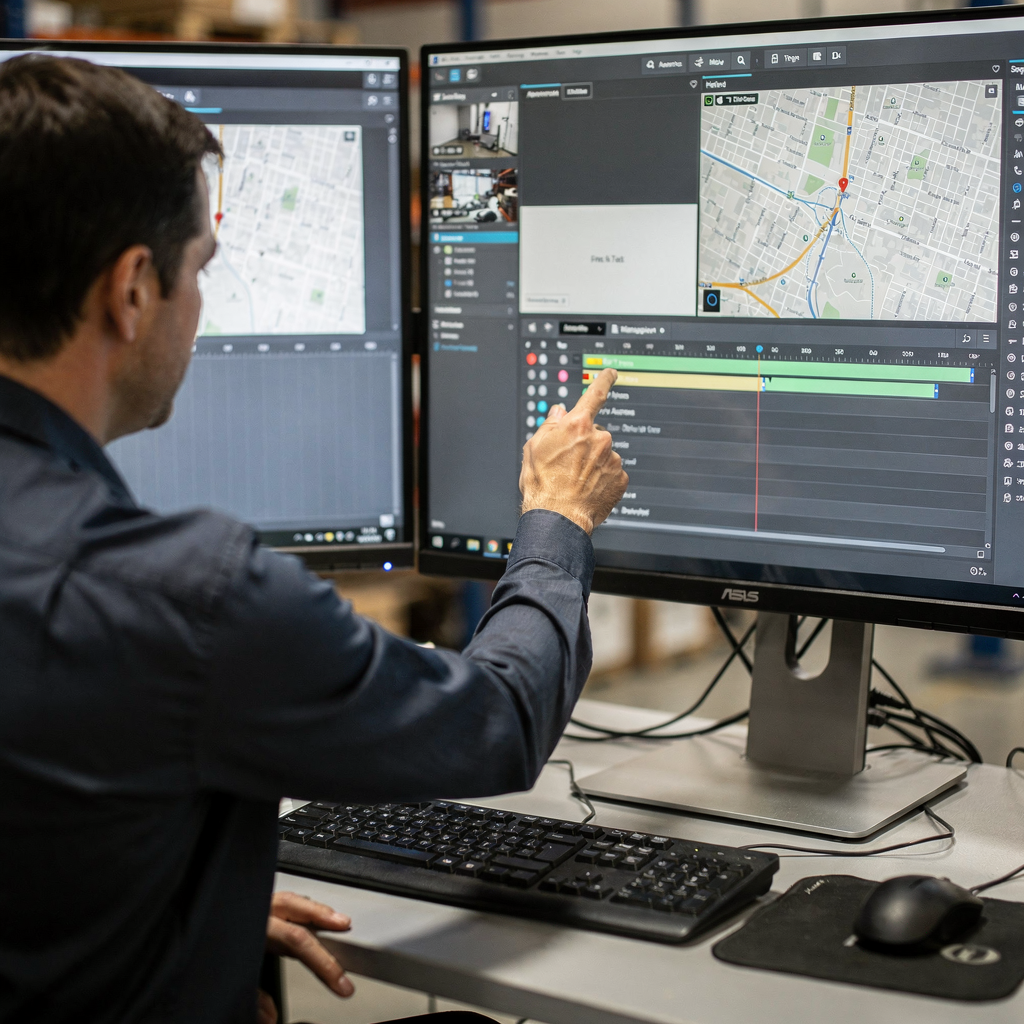
BVMS offers timeline and map-based views that give quick context. In the timeline, operators see events aligned to recorded segments. Also, map-based views show camera locations and recent activity. This combination helps teams decide where to focus next. You can jump from a map marker to a live view or to archived playback. Also, timeline markers link directly to recorded files so operators start playback at the exact moment of interest.
Filters speed triage. Apply filters by date, camera, event type, or user activity. Also, combine filters to reduce noise. For example, filter for alarm type and for a specific device to find related records fast. The bvms operator client supports multi-criteria filtering and saves common filter sets for repeat use. In addition, you can filter by record status or by who added a note to an event. For reporting, export filtered results as files or as archives for external review.
Bookmarking and exporting improve handoffs. Bookmark important timeline segments and then export them to a folder or to a forensic system. Also, add notes to bookmarks so investigators know why a clip mattered. When you export, the system packages the record, metadata, and any linked logs so recipients have full context. For long investigations, assemble a folder of bookmarks that includes relevant alarm entries and associated camera snapshots. If you need AI-assisted summaries, visionplatform.ai can extract human-readable descriptions and add them to exported records, which reduces the time analysts spend watching raw footage. Finally, always verify exported files for integrity before sharing.
description of Advanced Search Integration and Best Practices
Integrating BVMS text search with third-party systems multiplies value. Use SDKs and REST APIs to connect event streams to analytics, reporting, and workflow engines. Also, stream metadata to AI agents that enrich events with human-readable labels. Visionplatform.ai exposes events as structured inputs so agents can reason over them and propose actions. For example, VP Agent Reasoning correlates video, access control, and procedure documents to verify an alarm and suggest the next step. This reduces false positives and speeds operator decisions.
Follow metadata and naming best practices. First, standardize camera and device names across the site. Second, include zone, asset ID, and function in the name. Third, tag records with structured fields like shift, gate, or vehicle bay. Also, maintain a concise style guide so teams add metadata consistently. These steps keep searches precise and fast. For example, using camera labels that include area and direction makes query results far easier to filter.
Troubleshoot common search issues by checking indexes and permissions. If queries return incomplete results, confirm that the indexing service is running and that the bvms operator client has the proper rights to access logs and records. Also, check network connection and server load. If latency rises, verify that storage devices offer the required throughput and that the server CPU and memory are not saturated. In distributed setups, balance management, recorder, and analytics workloads across servers to avoid bottlenecks. For storage, consider RAID and iSCSI configurations that fit your retention policy. Finally, document rate limits and set alerting for index health so teams can act before search performance degrades. For operational best practice, schedule indexing and maintenance during low-traffic windows and keep your firmware and server software current.
FAQ
How do I prepare a file for BVMS upload?
Prepare files in H.264 or H.265 to match BVMS supported codecs. Also, make sure timestamps and metadata are intact so the system can index the file and link it to event logs.
Can BVMS handle thousands of cameras?
Yes. BVMS scales to large deployments and can handle real-time streams and metadata from over 10,000 devices according to Bosch capacity notes (capacity reference). Also, design your server and network to handle peak throughput.
What naming convention should I use for cameras?
Use short, descriptive names that include zone and direction. For example, include gate or bay IDs and function so text queries return precise results. Also, document the style guide for consistency.
How do I automate text queries?
Use the BVMS RESTful API to run queries programmatically and to pull results into workflows. The API also supports event exports and integration with analytics engines (API docs).
Can BVMS link access control logs to video?
Yes. BVMS integrates with access control systems such as Lenel so you can cross-reference badge events with camera footage. This makes incident verification faster and clearer. For practical examples, see our people detection in airports resource on correlating sensor data and video.
What if search results are slow?
Check index health, server load, and storage throughput first. Also, confirm that network connectivity and VLAN design isolate video traffic. If problems persist, review server sizing and consider splitting workloads across additional servers.
How many formats should I allow for upload?
Limit the number of accepted formats to reduce conversion steps. Prefer H.264 and H.265 only. Also, standardize on container types to simplify ingest workflows.
Is on-prem AI helpful for BVMS?
Yes. On-prem AI agents convert video to text, enrich events, and support natural-language forensic search without sending video off-site. Visionplatform.ai offers on-prem solutions that keep video and models inside your environment and provide reasoning layers for operators.
How do I export matched records for reporting?
Use the bvms operator client to bookmark segments, then export as files with attached metadata and logs. Also, use API calls to automate bulk exports for audits or investigations.
What is a quick tip to reduce false alarms?
Correlate alarms with access control and add metadata to camera names and events. Also, use AI-assisted verification so operators see explained situations rather than raw alerts, which reduces unnecessary responses.