search recorded video
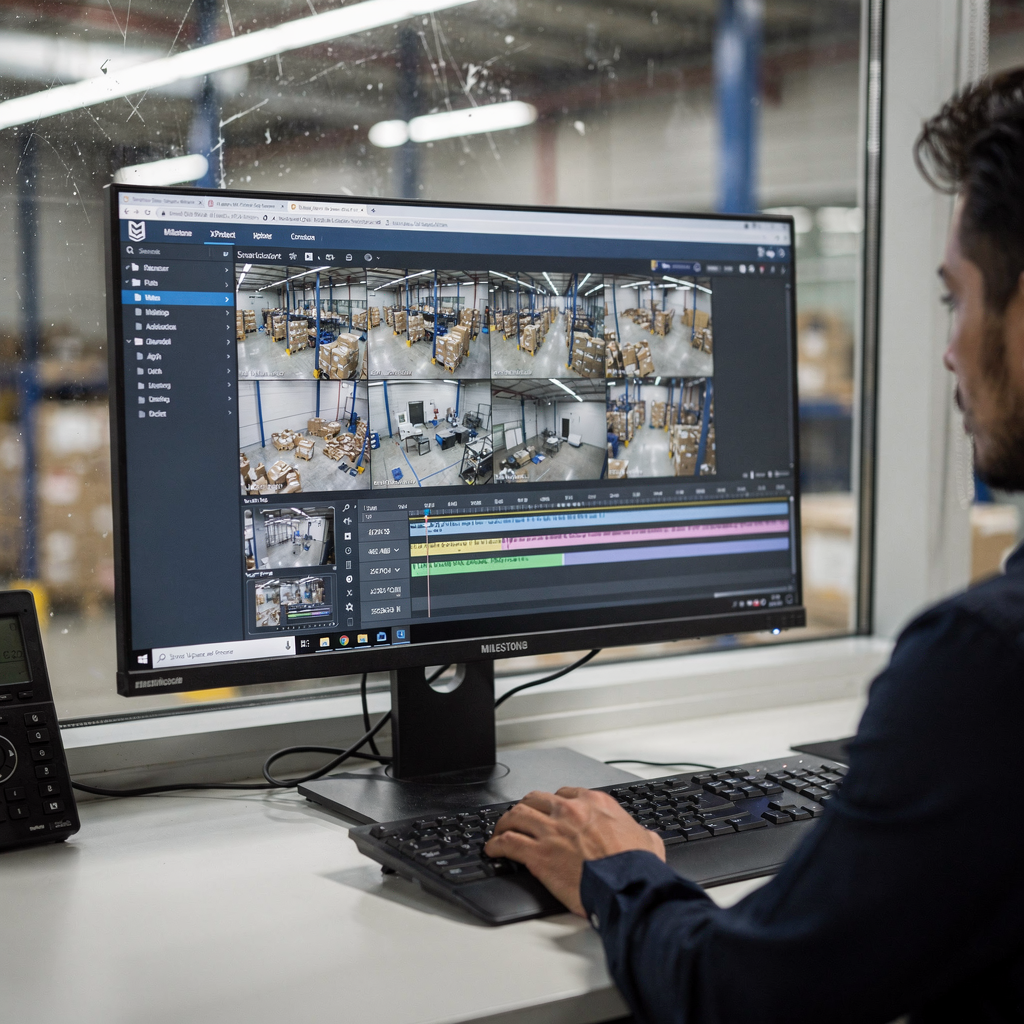
The Search tab in Milestone XProtect Smart Client gives operators a fast path to recorded video. First, open the search tab and you see controls that let you search by camera, time and analytics. Next, select cameras from the dropdown; the interface supports a single-camera view or a multi-camera matrix so teams can compare angles at once. For example, you might pick a door camera and a nearby corridor camera to get context. Then, pick a time range using presets or a custom date range to narrow the search to the minutes that matter. In practice, presets speed up investigations because they reduce clicks and manual entry.
Use the stream type and motion options to refine results. You can filter by main, sub or event streams, and you can include or exclude motion flags to focus on true events. Also, the search tab exposes metadata fields that come from analytics or the VMS, which helps when you need textual matches or object counts. If an operator wants to look for signage or numbers, enable the text-search module to capture OCR targets in frames. Our VP Agent Search from visionplatform.ai works with XProtect to turn video frames into searchable descriptions, which means operators can find incidents using plain language queries instead of camera IDs. This reduces time spent per case and increases accuracy.
To manage large archives, use the available server-side indexing and schedule exports of critical segments. In many deployments, indexing trims the time to find the right clip by up to 40% according to Milestone case studies How video analytics delivers ROI beyond security – Milestone Systems. However, always confirm that your management client and user permissions are set so that only authorised staff can open or export footage. Finally, remember to keep the VMS and analytics modules updated because security bulletins have highlighted risks if you run outdated versions Vulnerability Summary for the Week of December 15, 2025 | CISA.
find events by filters
Filters let you find precise moments quickly, and the Smart Client makes this straightforward. Click the filter icon next to a camera to reveal search filters for motion, object count and metadata. Then, use Boolean operators in the text fields to combine terms and reduce false positives. For example, use AND and OR to require plates plus vehicle, or to include multiple signage alternatives. This approach helps investigators combine context across cameras and leads to clearer search results without extra playback.
Combine filters across multiple cameras to correlate events. You might filter one camera for vehicle count while another uses object classification to detect a person. Apply AI-based analytics filters to accelerate investigations; these filters rely on models that detect faces, ANPR, PPE, loitering and other behaviours. If you need specialised detection like ANPR in airport environments, visionplatform.ai integrates with Milestone to enhance LPR accuracy and to expose results as searchable text for forensic workflows ANPR/LPR in airports. This makes it easier to find a plate across dozens of cameras.
Use saved filter presets to standardise searches across teams. Save a baseline set for perimeter checks, another for after-hours activity, and a third for customer service incidents. Click to apply a preset and the filters fill automatically, which reduces human error and speeds time to evidence. The search categories in the client help you organise these presets so operators can pick the right tool for the task. Also, bear in mind that filters depend on correct analytics configuration and camera placement; poor resolution or bad angles will limit detection performance.
When a system administrator configures filters, they should test for both precision and recall. Precision minimizes false alarms, while recall ensures you do not miss events. Finally, keep a change log and audit trail so you can trace who applied which filter, and when. For compliance-sensitive sites, this trail supports both investigations and operational reviews CISA vulnerability guidance.
AI vision within minutes?
With our no-code platform you can just focus on your data, we’ll do the rest
open and play footage
Once you find a matching entry, open the result in the playback timeline to examine the incident. Click any result and the playback timeline will position at the marked time. You can switch between single, quad and matrix views to compare angles; use single view for detail and matrix for situational awareness. Control playback speed with the slider, pause to inspect frames, and step frame by frame for forensic review. These controls help you extract accurate evidence without exporting the whole archive.
Toggle between live view and recorded mode to verify if an event is ongoing or historical. While in playback, you can mark in and out points to define clip segments for export. The client allows slow motion and reverse playback, which is essential when analysing crowded scenes or fast-moving objects. For chain-of-custody reasons, include metadata and timestamps in every exported file so that each file carries verifiable context. Also, ensure that the export integrity check runs to confirm there are no corrupt frames.
Operators often need concurrent access to multiple cameras; therefore, the Smart Client supports flexible layouts and quick switching. You can open additional timelines in tiled windows and synchronise them to a common timecode. This synchronisation is valuable when reconstructing an incident that spanned several zones. If your team requires richer contextual reasoning, visionplatform.ai’s VP Agent can turn those timelines into human-readable descriptions, letting AI agents summarise what happened across cameras so operators get decision-ready information faster Forensic search in airports. Finally, limit exports to authorised roles by configuring user permissions and the management client settings, so staff can only access the functionality they need.
save customised filters
Saving customised filters creates consistency and speeds future work. After you build a filter set—combining motion, object and metadata conditions—save it as a named preset. Then, rename or delete presets as workflows evolve; keeping presets organised prevents confusion. You can also assign presets to specific roles so teams see only the sets relevant to their tasks. For instance, a security manager might have access to high-level incident presets while a guard sees daily routine checks.
Access saved filters in both Live and Playback modes so operations stay consistent across contexts. Click a preset and the client applies the conditions immediately, which reduces manual steps during high-pressure shifts. Also, store presets centrally on the server for easy management, and back them up as part of your configuration process. If you need to change a preset, make the edit and then re-save under a versioned name so you retain older logic for audits or rollback.
Use the management client to control which groups see which presets; this preserves security and respects least privilege. The system administrator should review presets periodically to remove ones that are no longer relevant and to update thresholds after camera repositioning. Additionally, integrate presets with AI-assisted workflows from visionplatform.ai so that saved filters can trigger VP Agent reasoning or actions. This adds automation while keeping human oversight intact and ensures both speed and traceability when dealing with incidents.
AI vision within minutes?
With our no-code platform you can just focus on your data, we’ll do the rest
search text elements
Activate the text-search video content analysis module to find textual elements such as licence plates, signage and numeric codes. First, enable OCR processing on cameras where text will be visible; then, ensure the analytics are included in the camera configuration. For best results, use high resolution and solid lighting because OCR accuracy improves with image clarity. Also, close angles and perpendicular views of text help the system extract characters more reliably.
Enter keywords into the text field and use Boolean logic to refine hits. You can search for partial plates, street signs or codes that operators recall from incident reports. Review the search results carefully, and use snapshots to confirm candidates before you export evidence. If you find too many false positives, refine your filters by adding metadata constraints or limiting the camera set to those with the best visibility.
In addition, export snapshots or short clips as evidence files, and include the OCR text in the accompanying metadata. This makes later review and reporting faster for investigators and auditors. Visionplatform.ai complements text-search by converting frames into readable descriptions via a Vision Language Model, which allows free-text forensic queries across cameras and timelines without needing exact plate strings. This approach helps teams find events even when they remember only partial details.
Finally, maintain an accuracy checklist: check camera resolution, lens focus, lighting and angle, and test OCR against ground-truth samples. Keep analytics models updated because improvements in OCR and ANPR models can raise successful detection rates significantly. For regulated sites, record who enabled text-search and how the extracted information will be stored so you can comply with privacy and data-retention policies Canon Sustainability Report 2020.
save clips and export video
When you find an incident, mark in/out points to define clip segments precisely. This ensures exports contain only the material needed for evidence. Then, choose an export format such as MPG, MKV or AVI and run the integrity check to verify file completeness. Include an audit trail and embedded metadata so the exported file carries timestamps, camera IDs and chain-of-custody notes. These steps reduce risk during legal or compliance reviews.
Export tools let you include captions, snapshots and a text file with metadata. You can archive clips to NAS storage or to a federated architecture, enabling long-term retention without overloading the primary server. For high-volume sites, automate exports of critical incidents to a secure archive and keep a separate index for fast retrieval. Remember to limit export rights; only those with the right user permissions should be able to produce files or change export settings.
Also, use checksum and file verification during export so recipients can confirm integrity. If your environment demands on-premise processing and tight data control, visionplatform.ai supports integration with Milestone to keep exports in your local environment while adding AI-assisted tagging. This keeps video and metadata in the control room and reduces cloud transfer risk, which is important for EU AI Act compliance and organisational security policies Security Bulletin 17 December 2025. Finally, document your export process in procedures so teams follow the same steps and audits are straightforward.
FAQ
How do I start a basic search in XProtect?
Open the Search tab in the Smart Client, then select the camera or cameras and a time range. Click to apply basic filters such as motion or stream type, and then open results in the playback timeline.
Can I combine filters from different cameras?
Yes. You can apply filters across multiple cameras to correlate events and reduce false positives. Combining object and motion filters helps investigators narrow down relevant clips quickly.
What improves OCR accuracy for text search?
Higher resolution, good lighting and perpendicular camera angles improve OCR results. Also, ensure the analytics module is enabled and models are up to date for best performance.
How do I export a clip with metadata?
Mark in and out points in playback, choose an export format, and include metadata in the export options. Run the integrity check and save the file to NAS or the federated archive for long-term storage.
Are saved filter presets shareable?
Yes; save presets with a clear name and assign them to groups or roles via the management client. This lets you standardise searches and control who can use each preset.
What should a system administrator check after deploying analytics?
The system administrator should verify camera configurations, model versions and user permissions. They should also test filters and maintain an audit trail for changes and exports.
How does AI help in forensic search?
AI can turn video into human-readable descriptions and allow free-text queries across timelines. This reduces manual review and helps operators find incidents without knowing exact camera IDs or timestamps.
What export formats are supported?
Common formats include MPG, MKV and AVI; your management client will list available options. Always run integrity checks to ensure files are complete before distribution.
How do I restrict export rights?
Use the management client to configure user permissions so only authorised roles can export. This preserves chain of custody and reduces the risk of unauthorized disclosures.
Where can I learn more about integrating ANPR with XProtect?
See our ANPR/LPR integration guide for airports, which explains configuration and best practices for plate recognition. The guide shows how to improve detection through camera placement and model tuning ANPR/LPR in airports.